
Automating Customer Feedback with Dynamics 365 Customer Voice After Case Resolution
Customer satisfaction is one of the most important metrics for any service team. In Dynamics 365 Customer Service, you can streamline this process by automatically sending a Customer Voice survey once a case is resolved. This allows you to capture real-time feedback and continuously improve service quality.
Step 1: Set Up a Customer Voice Project
Create Survey in Dynamics 365 Customer Voice
Create a new project
Add survey questions. In my case, I also added a sentiment metric to the text question

I have aslo updated the email text to include the Case Number and the agent who resolved the case

Step 2: Automate Survey Distribution with Power Automate
Create Survey in Dynamics 365 Customer Voice
Go to Power Automate and create a new flow.
Trigger: When a case is resolved in Dynamics 365.

Condition on the customer type to send the survey to contacts only.

Get Contact information.
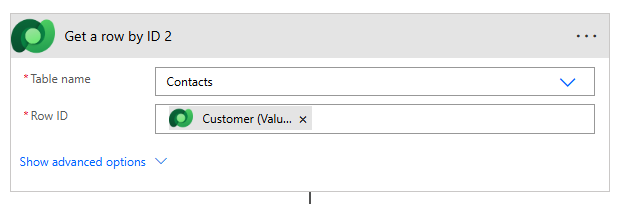
Get User information.

Send Customer Voice Survey. This action will create the invitation in Customer Voice and send the email with the link to the contact.

The contact will receive an email as shown below.

By integrating Customer Voice with case resolution, you create a closed feedback loop—ensuring every customer feels heard and your support team gets the insights needed to improve.


Comments